
On this page
Quick answer
Find the size limit for where you're sending the video, then compress it to fit. Gmail attachments can be up to 25 MB in total and Outlook.com's up to 20 MB. Upload your video to Compress Video, pick the Email or Messaging preset (or type an exact size in MB), check the estimated size, and download the smaller file.
How small does your video need to be?
| Where it's going | Size to aim for | Source |
|---|---|---|
| Gmail | Under 25 MB (all attachments together) | Gmail Help |
| Outlook.com | Under 20 MB | Microsoft Support |
| Chat apps, Slack, Teams, forums | Varies; check the app's upload limit | The app's help page |
| Instagram, TikTok, YouTube | Resolution matters more than size: 1080p is enough | — |
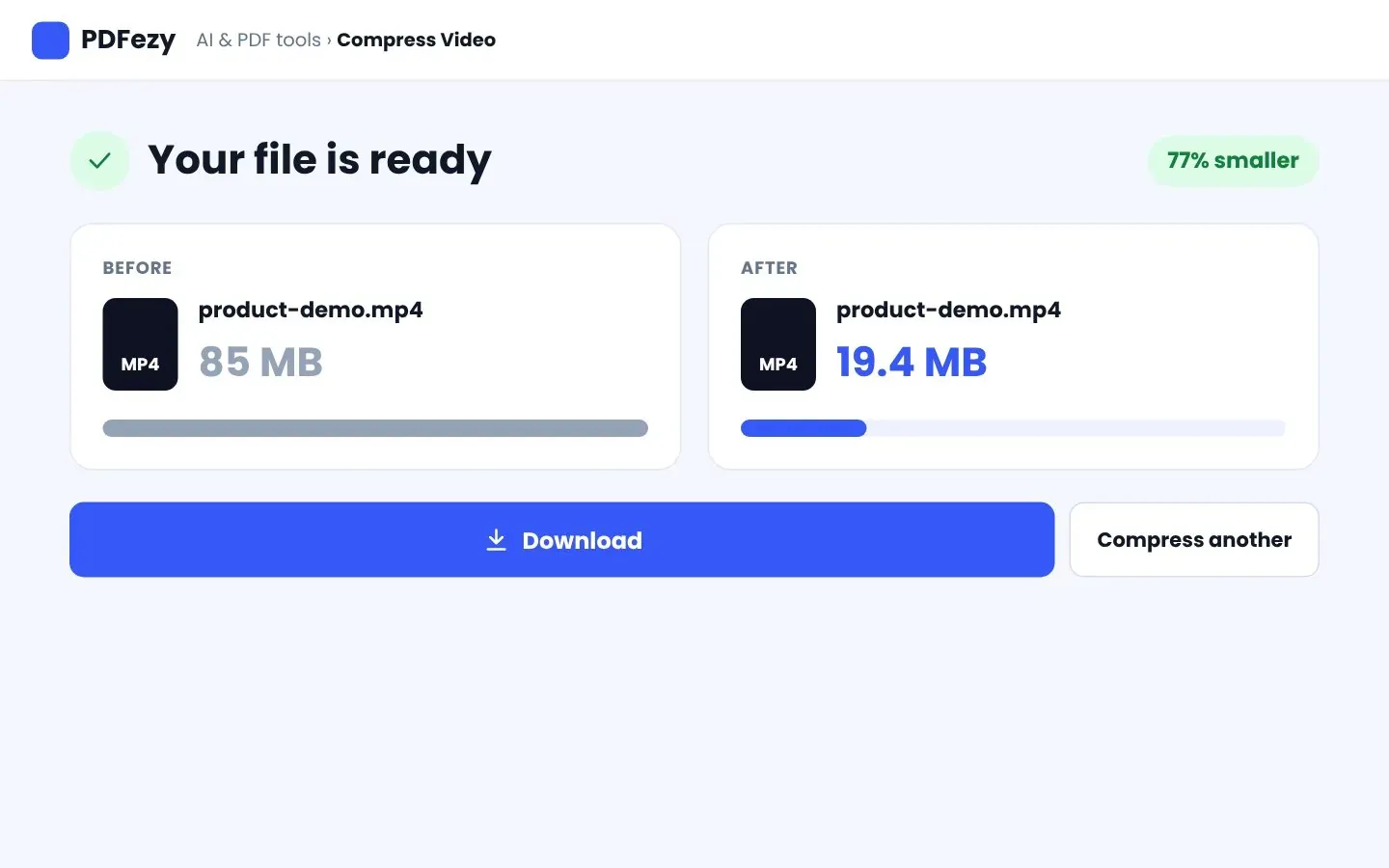
Videos from phones are big: a typical clip of just over a minute at 1080p can be around 85 MB, so most clips need compressing before they fit in an email.
How to compress a video with PDFezy
- Open Compress Video and upload your video, up to 100 MB. MP4, MOV, MKV, AVI, WebM and other common formats work.
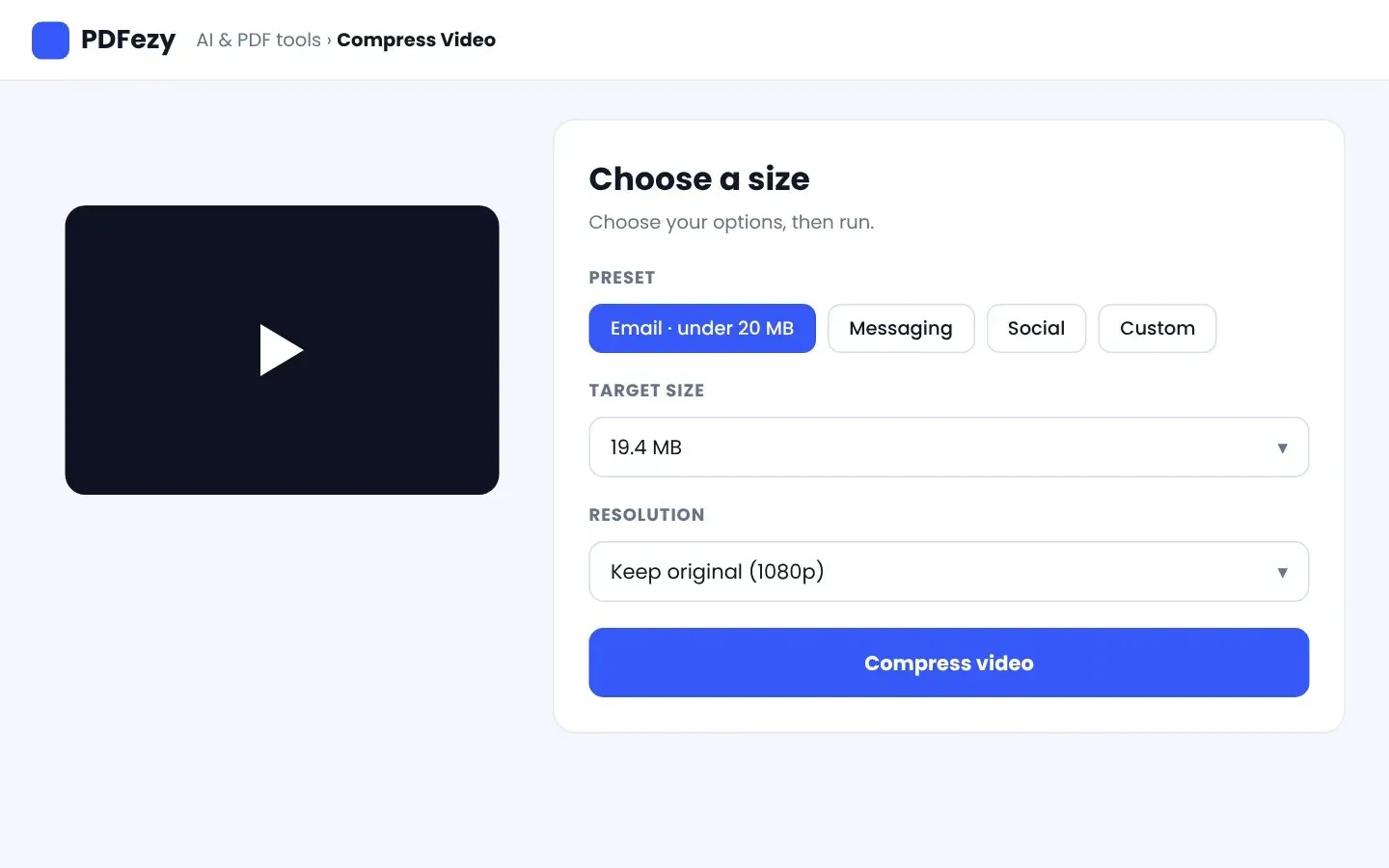
- Choose how small: tap Email, Messaging or Social media, type a target size in MB, or pick Smaller file, Balanced or Best quality. You can also scale it down to 1080p, 720p or 480p.
- Check the estimated size, then start.
- Download your smaller video and see how much space you saved.
How to keep it looking sharp
- Start with Balanced. It's the right choice for most videos.
- Lower the resolution before the quality. A 1080p video at good quality looks better than a 4K video squeezed hard.
- Always compress the original. Compressing an already-compressed file again makes it blurry faster.
- Keep your original. Compression can't be undone.
When compressing isn't enough
If a long video can't get under a tight limit without looking bad, trim it first in PDFezy's Video Editor, or share a link instead: upload it to cloud storage and send the link. Gmail offers a Google Drive link automatically for large files.
Frequently asked questions
Does compressing a video reduce quality?
A little, but most of what's removed is detail you can't see on a phone or laptop. Start with Balanced and check the result.
How do I compress a video to a specific size?
Type the size you need, such as 25 MB, and the compressor fits the video to it.
Can I compress a video on my phone?
Yes. Compress Video works in your phone's browser, with nothing to install.
Can I compress a video more than once?
You can, but each pass loses more detail. If the first result is too big, go back to the original and pick a smaller size.