
On this page
Quick answer
Upload the PDF to a document translator that translates in place, choose the target language, and download a translated PDF or Word file. PDFezy's Translate PDF detects the original language, translates each paragraph, heading and table cell where it sits, and leaves numbers, codes and names unchanged.
Why copy-paste translation breaks documents
Copying text from a PDF into a translation box loses the layout, splits tables into lines and mixes up columns. You end up with translated text you have to rebuild by hand. A document translator works on the file itself, so the result looks like the original.
How to translate a PDF with PDFezy
- Open Translate PDF and upload your file, up to 100 MB. The original language is detected for you.
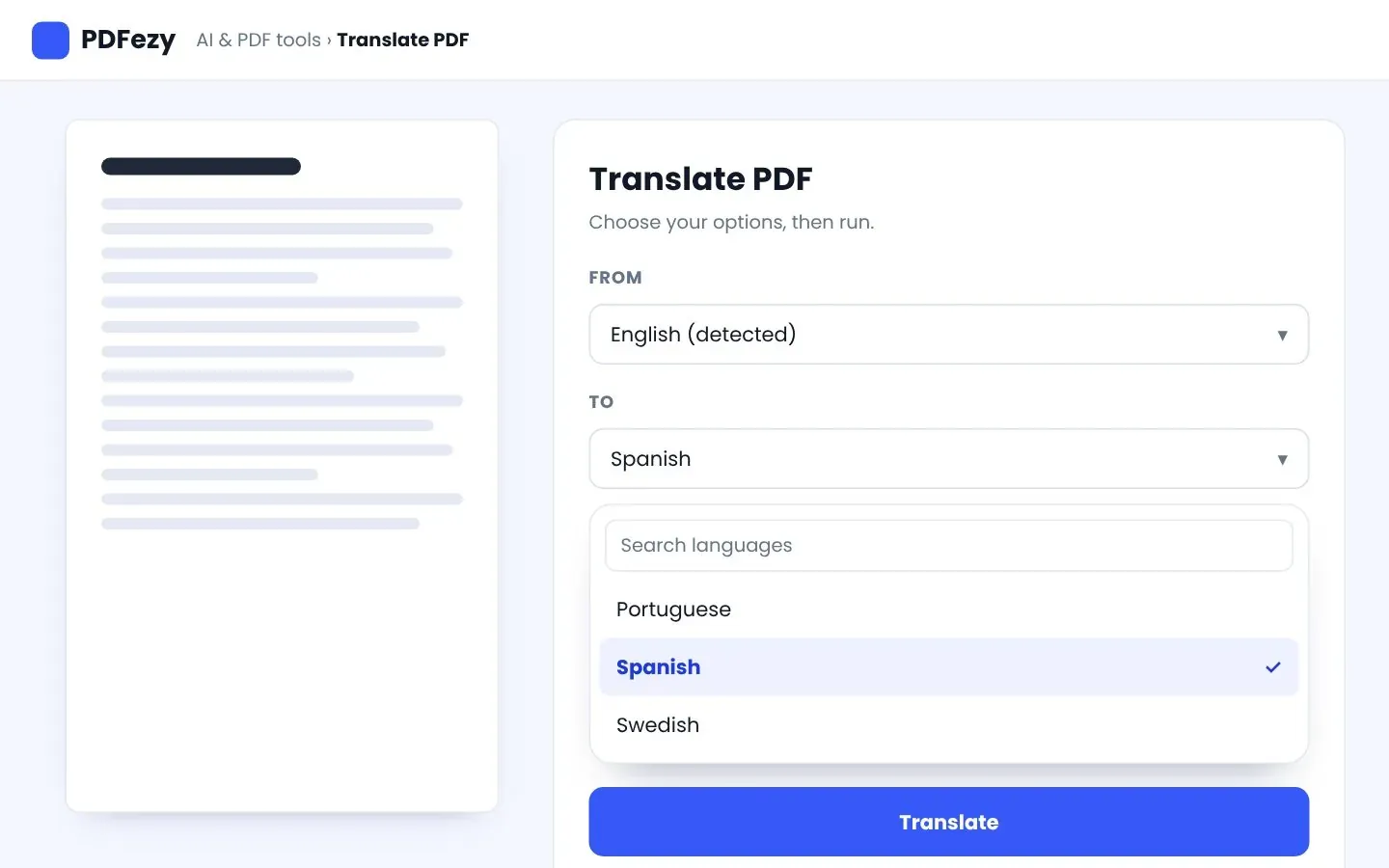
- Pick one of 88 target languages.
- Choose Keep layout (translated in place) or Only text (clean translated text without the design).
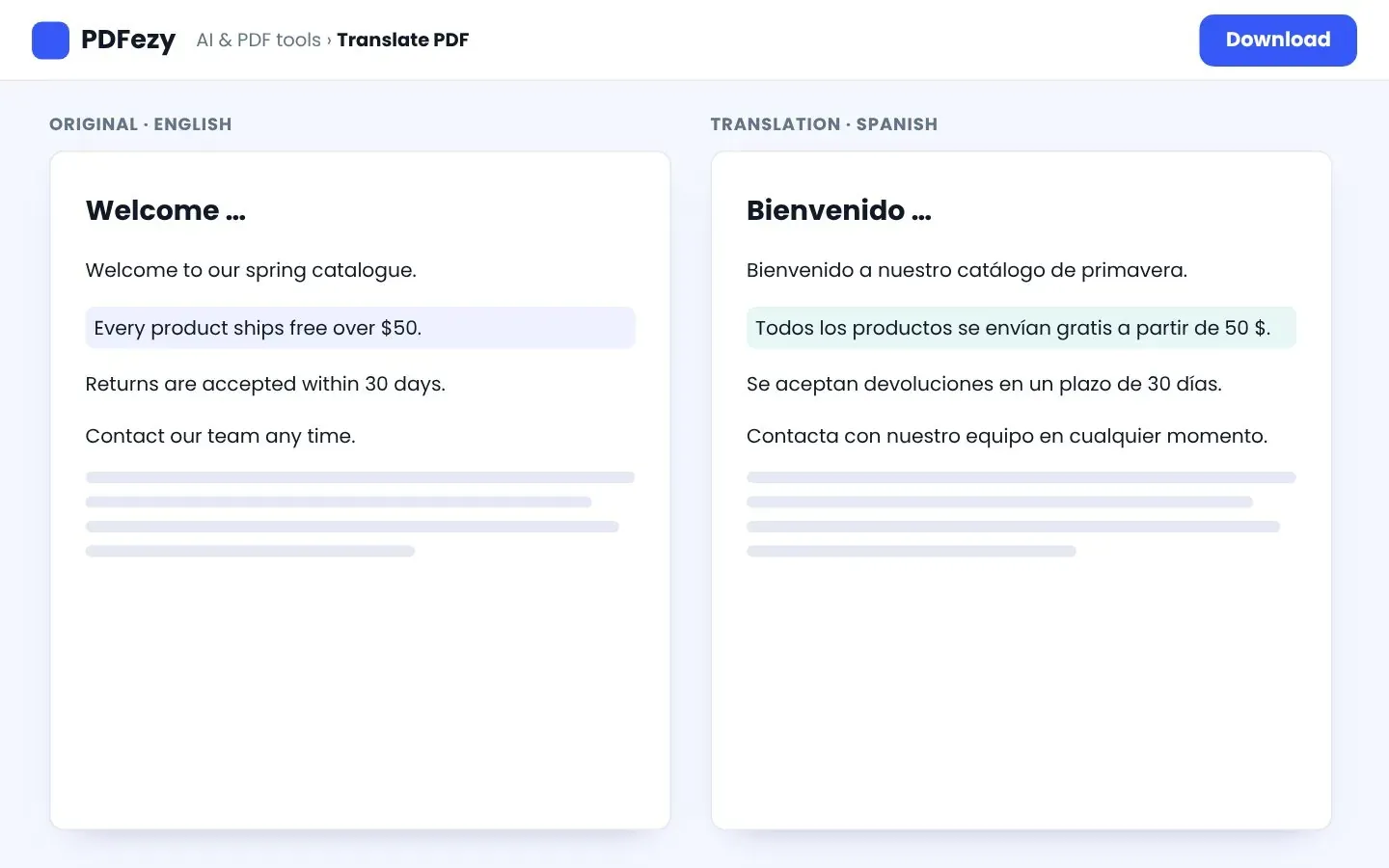
- Compare the original and the translation side by side.
- Download as PDF or Word.
Keep layout or only text?
| Choose | When |
|---|---|
| Keep layout | Contracts, reports, brochures and forms you'll share or file. Longer translations get a slightly smaller font so they fit. |
| Only text | You need to copy the translation into email, notes or another document. |
Scanned pages are read with OCR and come back as clean translated text.
Languages that need special handling
- Right-to-left languages such as Arabic, Hebrew and Urdu are laid out right to left.
- Chinese, Japanese and Korean are supported.
- Numbers, codes and names stay exactly as they were, so amounts and references don't get altered.
How PDFezy compares with other PDF translators
| PDFezy | iLovePDF | Smallpdf | |
|---|---|---|---|
| Languages to translate into | 88 | 25 | 20+ |
| Keep the layout or get only the text | Yes, your choice | Yes, your choice | Full translation or a translated summary |
| Scanned PDFs | Yes, read with OCR | Yes, read with OCR | Not stated |
| Side-by-side check before download | Yes, page by page | Not stated | Not stated |
| Largest free file | 100 MB | 15 MB | Not stated |
All three are free to start. PDFezy covers the most languages and the largest files, and lets you check the translation against the original before you download it.
When to use a professional translator
AI translation is good for understanding a document and producing a first draft. For legal filings, immigration and government documents, medical records and anything you'll sign, use a certified translator. Many authorities require certified translations for official submissions.
Frequently asked questions
How many languages can I translate a PDF into?
88 on PDFezy.
Will my tables and images stay in place?
Yes, in Keep layout mode.
Can I translate a scanned PDF?
Yes. It's read with OCR, and you get clean translated text.
Is it free?
Yes. Your first 50 pages are free, with no sign-up needed.
Can I just get a summary in another language instead?
Yes. Summarize PDF can write the summary in any of 30+ languages.