
On this page
The workflow in short
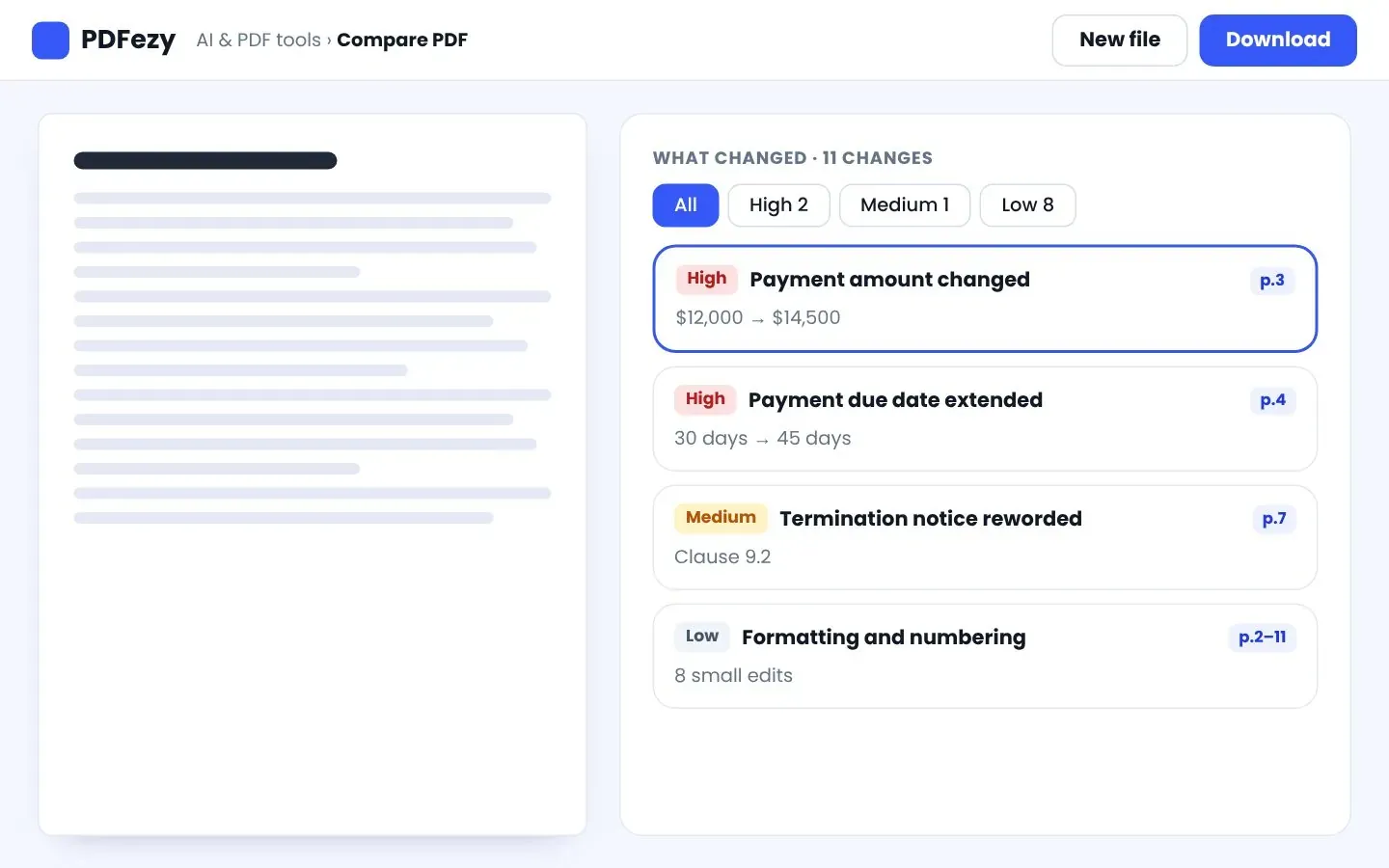
Upload the original and the revised contract to a PDF compare tool, and review the list of changes. PDFezy's Compare PDF compares the two files word by word, then flags changes to money, dates and obligations as High so you check those first. Click any change to see it in both files.
Built for
Legal & contractsTools in this workflow
Why reading both versions isn't enough
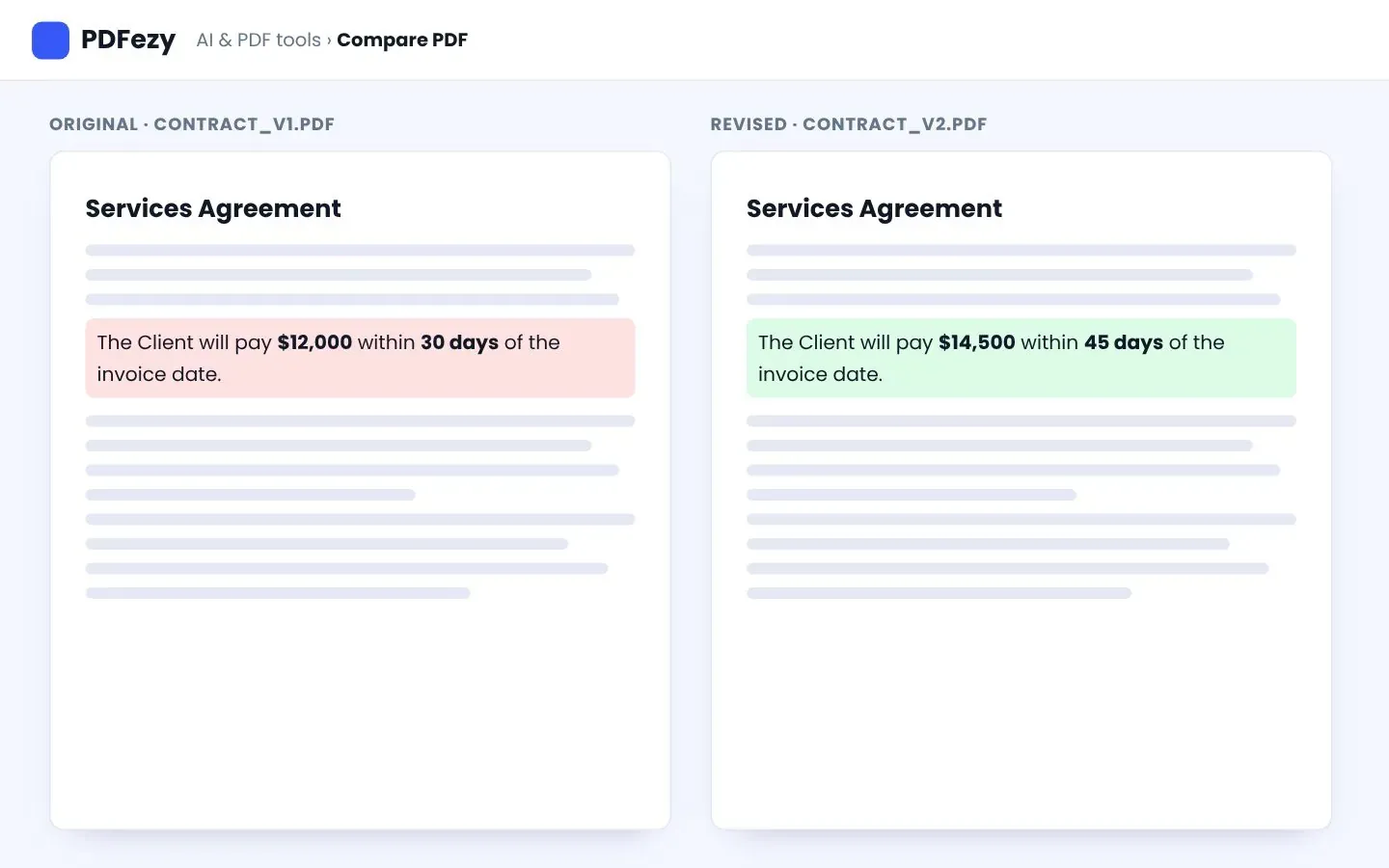
When the other side sends a "clean" revised draft, small edits are easy to miss: a payment term moved from 30 to 45 days, "may" changed to "shall", or a cap on liability quietly removed. Reading two long documents side by side is slow, and you're most likely to miss changes in the parts you've already read once.
How to compare two contracts with PDFezy
- Open Compare PDF.
- Upload the original on the left and the revised version on the right. You can also drop both files at once.
- PDFezy compares every word. The comparison uses no AI, so every mark is a real difference.
- AI then groups the changes, names each one in plain English and ranks it. Money, dates and obligations are flagged High.
- Click a change to jump to it in both files, then download the change report.
What to check first
| Change type | Why it matters | Example |
|---|---|---|
| Money | Changes what you pay or receive | Fee changed from $1,200 to $1,450 |
| Dates and deadlines | Changes when you must act | Notice period from 30 to 60 days |
| Obligations | Adds or removes duties | "including weekends" added to support hours |
| Liability and termination | Changes your risk | Liability cap removed |
| Wording ("may" / "shall") | Turns options into duties | "may provide" → "shall provide" |
What a text comparison won't show
PDFezy compares the text. Changes to layout, images or fonts aren't shown, and text that only moved to another line or page isn't counted as a change. If a signature block, logo or diagram matters, check those visually.
Tips for an accurate comparison
- Compare the same document: two versions of one contract, not two different contracts.
- Put the older version first so additions and deletions are labelled correctly.
- For Word drafts, convert both with Word to PDF first, or use Word's own Compare feature on the .docx files.
- Scanned versions work, with built-in OCR, but check numbers carefully.
Before you sign
A comparison shows you what changed; it doesn't tell you whether the change is acceptable. For important agreements, have a lawyer review the High changes. Before sharing drafts outside your organisation, remove private details with AI PDF Redaction.
Frequently asked questions
Does AI decide what changed?
No. The files are compared word by word without AI. AI only names and ranks the changes.
How many pages can I compare free?
The first 50 pages of each file.
Can I compare more than two files?
No. Compare PDF compares two versions at a time: the original and the revised.
Can I download the results?
Yes. Download the change report to share or file.