
On this page
Quick answer
For a PDF that's mostly tables, use a PDF to Excel converter to turn each table into spreadsheet cells. For invoices, receipts or bank statements, use an AI extractor that pulls line items into clean rows and checks the totals. On PDFezy, that's PDF to Excel or AI Data Extraction.
Why copy-and-paste doesn't work
A PDF doesn't store tables as rows and columns. It stores each number at a position on the page. When you copy, you get text in reading order, so a five-column table pastes into Excel as one long column, or as rows with values in the wrong place.
Which tool to use
| Your PDF | Use | Why |
|---|---|---|
| Reports, price lists, schedules with clear tables | PDF to Excel | Converts whole pages and their tables |
| Invoices, receipts, bank statements | AI Data Extraction | Picks out fields and every line item, with a totals check |
| Scanned table | Either, after OCR; AI Data Extraction reads scans and photos directly | Scans have no text until read |
Method 1: PDF to Excel converter
- Open PDF to Excel and upload your PDF.
- Convert and download the .xlsx file.
- Open it in Excel or Google Sheets and check each table's columns.
Method 2: AI Data Extraction for invoices and statements
- Open AI Data Extraction and upload a PDF, JPG or PNG up to 100 MB.
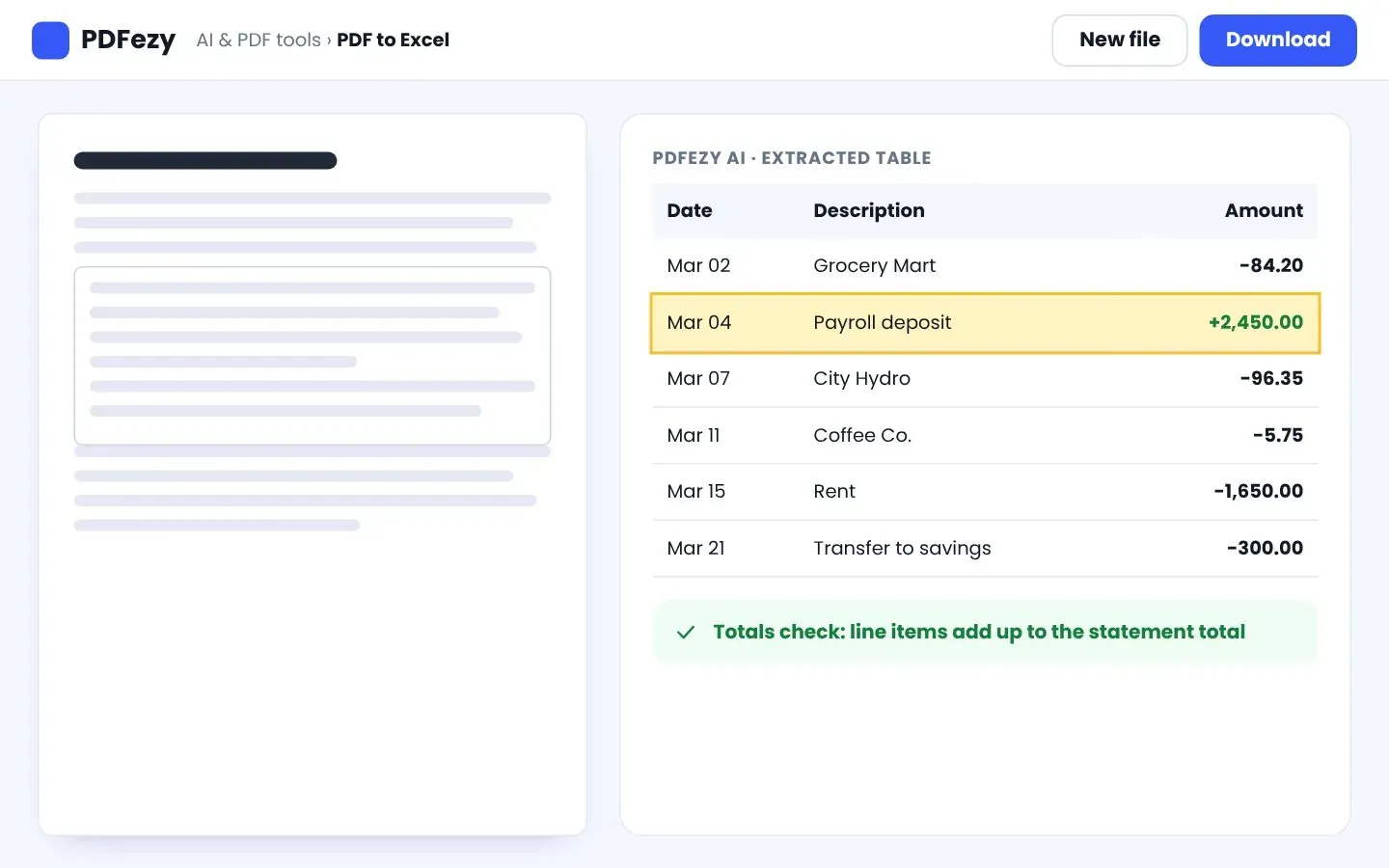
- Review the result. Values the AI is less sure of are highlighted, and a totals check shows whether the lines add up.
- Click any value or cell to fix it.
- Download as Excel, CSV or JSON, with your corrections included.
Other online PDF to Excel converters
Smallpdf, iLovePDF, PDF24 Tools and Adobe Acrobat Online also convert PDF tables to Excel. PDF24 is free without usage limits; Smallpdf and iLovePDF limit free use, and Adobe allows one free task without signing in. For statements, invoices and receipts, AI Data Extraction is the better fit, because it checks the totals and lets you fix values before you download.
How to fix common problems
- Numbers stored as text. Select the column and use Data → Text to Columns → Finish, or multiply by 1.
- Merged header cells. Unmerge and fill the headers so each column has one name.
- One table split across pages. Copy the second part under the first and delete the repeated header row.
- Currency symbols and commas. Use Find and Replace to remove them before calculating.
- Wrong dates. Check day/month order; regional settings can swap them.
Frequently asked questions
Can I convert a scanned table to Excel?
Yes. AI Data Extraction reads scans and phone photos; for PDF to Excel, run PDF OCR first.
Will formulas come across?
No. PDFs hold values, not formulas. Add formulas after converting.
Can I export to Google Sheets?
Download Excel or CSV and open it in Google Sheets.